6. Using Media in Storyline 360
Think of media as fuel for engagement. When used well, it can turn flat content into a story worth following. Conversely, using media just for the sake of using media can sometimes disrupt the flow of learning, so let’s talk about different types of media and how to use them effectively.
Audio
First let’s define what we mean when we talk about audio in regards to Storyline. We are talking about anything the user can hear when they are taking the course. This could be a voice-over, a sound clip, music, sound effects, etc.
Voice-overs can guide learners through complex topics, provide instructions, or narrate scenarios, making the content more personal and accessible. You can sync the actions of your slide (create a cue point by hitting “c” while listening to your audio) to the voice-over to allow you to guide the learner through a complex task, and add detail that is not contained visually in the slide.
Music can have a place in a course, but should be used sparingly. For example, I like to use it for a course intro or outro, or as the companion to a game or activity. Caution should be used though, because it can be distracting. I avoid using background music in a course, especially if there is other audio, like a voice-over. I do not want them competing for the users attention.
Strategic use of sound effects can highlight key points, indicate correct or incorrect responses, and enhance interactivity in simulations and quizzes. I typically reserve sound effects for in-course games; a pleasant ding for example if a user earns points or prizes.
Storyline makes it easy to import audio files, sync them with animations, and control playback with triggers and layers, ensuring smooth and immersive audio experiences. Additionally, audio settings allow for adjustments in volume, looping, timing to match the visual content.

Shapes in Storyline synced to specific cue points in the timeline corresponding to a voice-over
Video
Video is a great way to provide engaging content. I love to use it to break up longer, text-heavy courses. It gives the user a break, and allows for them to take in content in a different way. Video case studies are a great example of this, but you can go even simpler and get a great result. How about a video introduction or summary for a course or module?
Storyline supports a wide range of video formats, allowing you to embed instructional videos, demos, interviews, or scenario-based learning clips directly into slides. You can control playback with triggers, layer videos over interactive elements, and synchronize animations to key moments in the video for a cohesive learning experience. Additionally, Storyline provides options for closed captions, video controls, and even interactive elements within videos, such as hotspots and clickable buttons, making it easy to create immersive learning experiences.
The Media Library
The Media Library in Articulate Storyline 360 is a centralized hub that allows you to easily manage all the multimedia assets within your project, including images, audio files, videos, characters, and documents. This feature provides an organized view of every asset, helping you quickly locate, edit, replace, or delete items without manually searching through slides. One of its most valuable capabilities is the ability to update a media file once, which then automatically reflects across all instances where it's used in the project—saving time and ensuring consistency. The Media Library also displays details such as file size, usage count, and resolution, enabling you to optimize project performance. Additionally, you can export media for external editing or import new files directly into the library, streamlining the development process.
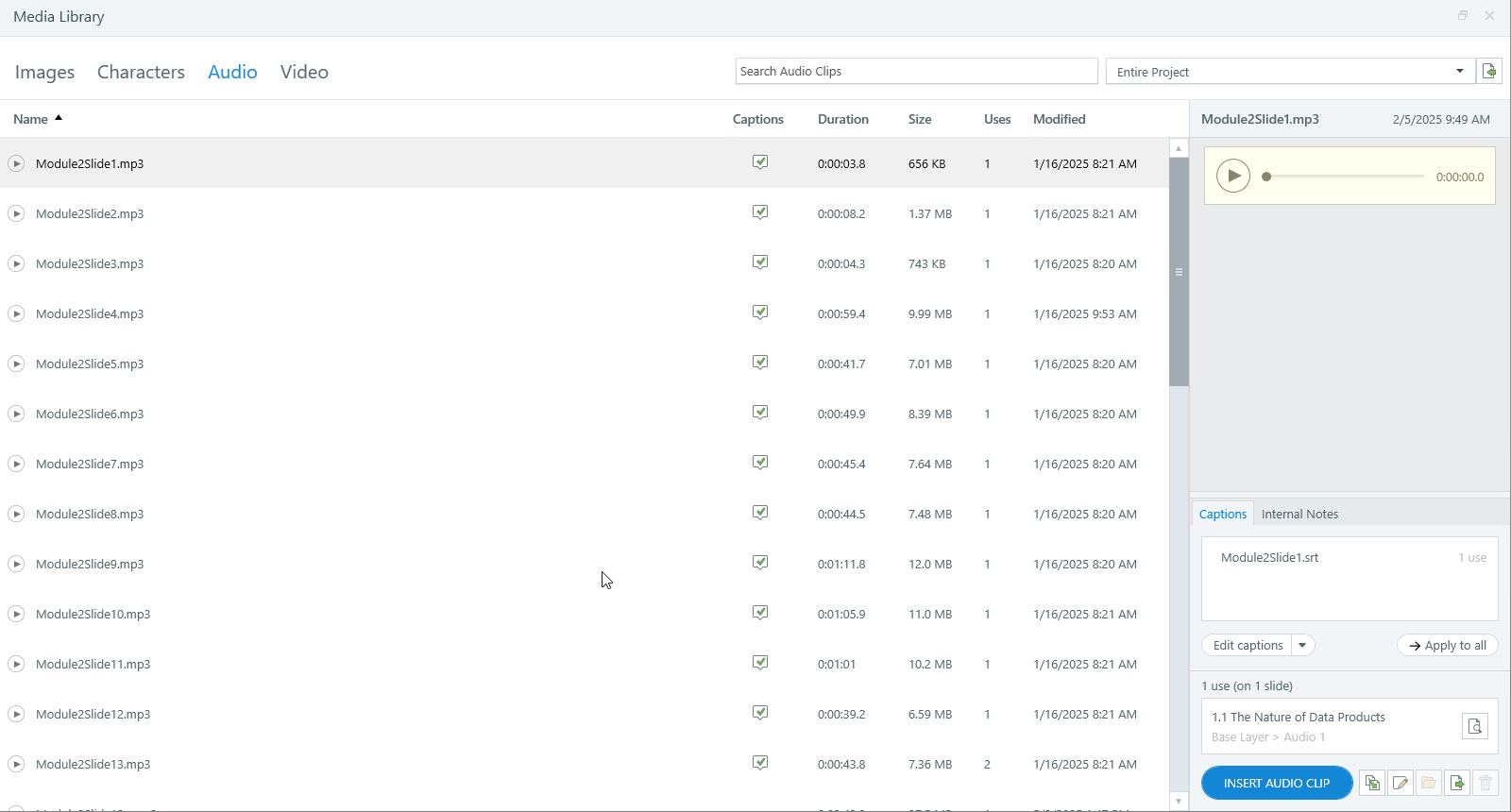
The media library
A Note on Media and Accessibility
As you are designing with media you need to keep in mind how it will be consumed by a variety of different learners with a variety of different abilities. In future post will cover how to ensure that your courses are accessible to all learners. However, I do want to point out that it is very easy to add closed-captions for your media including voice-overs and video. Even if your video does not have speech you can indicate the presence of music or sound effects with captions. Here is an amazing resource for accessibility in Storyline-built courses: https://community.articulate.com/kb/article-series/all-about-accessibility/119379