4. More Ways to Add Interactivity in SL360
Last time we covered how to create basic interactions like buttons and layers. Now lets look at some more advanced ways to add interactivity into Storyline— variables, motion paths, sliders, and dials. These features can help you create smarter, more personalized learning experiences.
Variables
Think of variables as memory for your course:
They store learner choices
Control what happens later in the course
Personalize content
Here are the common types of variables:
Text: Store names, locations, etc. This is useful if you want to customize your course. A learner may input their name or their title, and you can use this variable to reference their name or title later in the course.
Number: Track scores or attempts. A very common example is to score a game you have created in the course. The number variable can determine score and perhaps trigger a certain reward.
True/False: Toggle logic or actions. In my courses I often have a pop-up message with instructions. I only want the user to see those instructions one time no matter how they navigate through the course. To do this I use a true/false variable. If it is true the user has already seen the instructions they are not shown them again. If it is false they have seen the instructions, then they are shown the instructions.
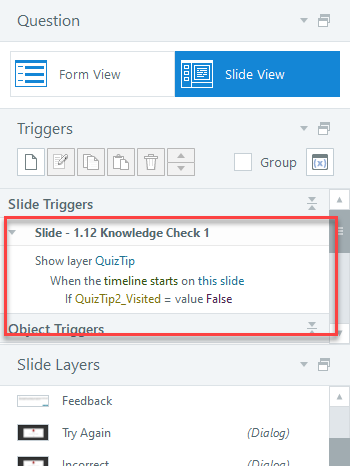
Here a T/F variable I have named “QuizTip2_Visited” is triggered if the value of the variable is F.
Sliders & Dials
Sliders and dials are a fun, visual way to let learners input values to impact how they experience the course. For example a slider or dial could allow a user to set a budget amount in a simulation, or estimate risk in a certain scenario, or even adjust colors or visuals in a course.
I once worked on a course where users were asked to watch a video and then indicate if the behavior in the video was appropriate for work. We asked them to do this through a slider mechanism that used colors to mimic a traditional rating scale, with green being “appropriate”, yellow being “could be inappropriate, but not sure” and red being “not appropriate”.
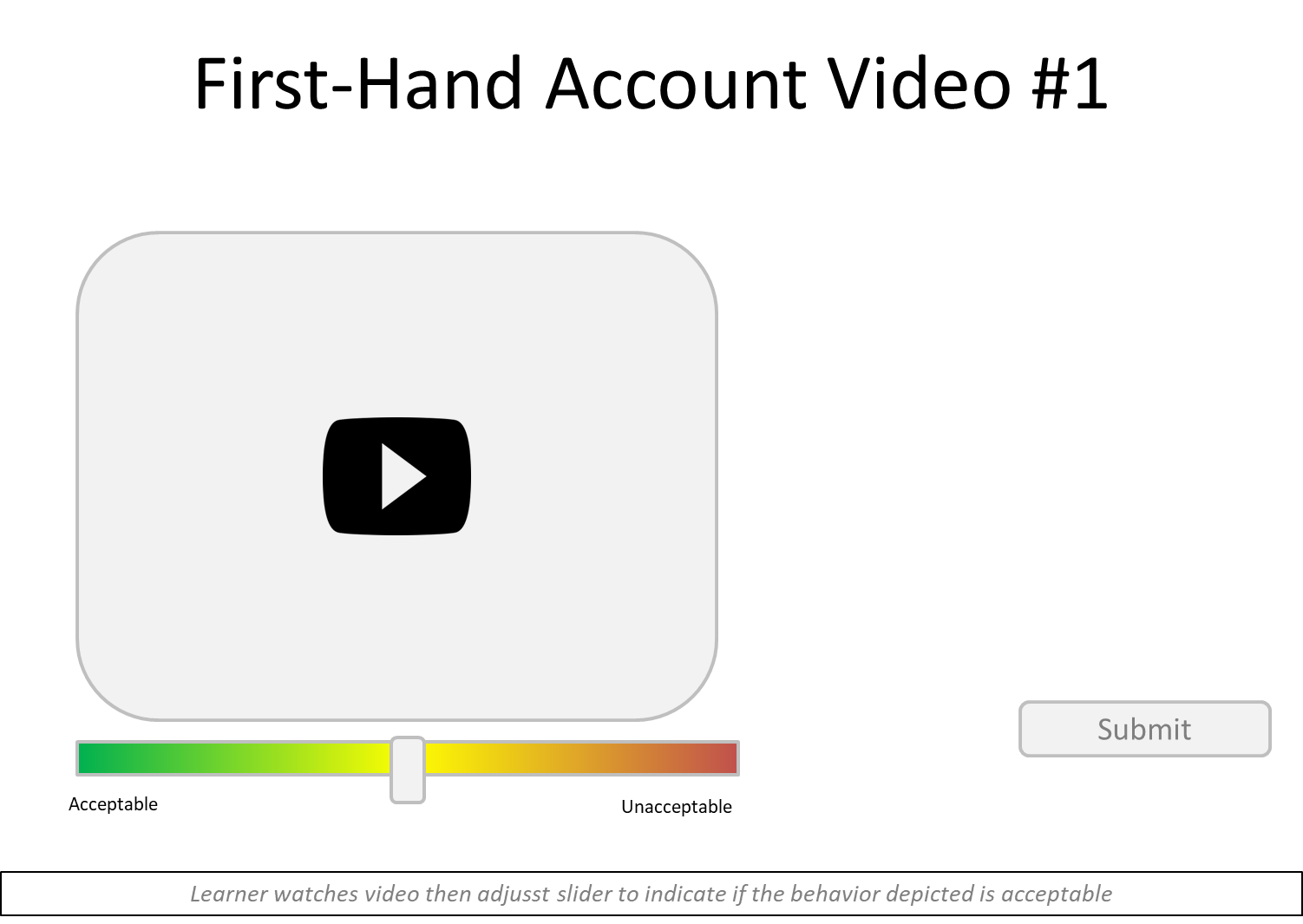
Mock-up of slider video rating mechanism
Here are more great slider examples: https://community.articulate.com/blog/challenge-recaps/60-examples-of-interactive-sliders-in-e-learning-52/1101946
Here are some really creative examples using dials: https://community.articulate.com/blog/challenge-recaps/30-ways-to-use-interactive-dials-in-e-learning-design-453/1153148
Motion Paths & Animation
Motion paths and animations can make content come alive by adding movements to a course, combining with triggers to create dynamic effects, and creating engaging drag and drop or animated effects.
If you are familiar with PowerPoint you may be familiar with motion paths which are a way to move an item or element along a set path where you can control the distance, speed, and trajectory. Motion paths give the appearance of animation. Creating a looping motion path by adding a trigger can create a seamless motion that does not end until the learner leaves the slide.
In my course “Welcome to Crete!” the user explores a map of the island by moving their cursor around various sights of interest. To make the map more dynamic, I used looping motion paths to move clouds gently across the sky, and to have a school of fish move through the water. A trigger ensured that the motion continued, or looped for as long as the user was on the slide.

Trigger to loop the cloud motion
You can visit a live version of this course here: Welcome to Crete!
Notice other types of interaction that we we have discussed so far. The pop-up information boxes are layers, the progress bar is a modified slider. Do you see any other types of interactivity that we have discussed? Hint: it has to do with sound and variables
Conditional Branching
Conditional branching allows you to deliver feedback on choices the learner makes, build scenario-based learning, and even unlock special content based on learner input. This is a great option when you need to create a course that covers complex decision making. By allowing the user to make choices, experience the consequences in a controlled setting, and receive immediate feedback you can empower true learning in a risk-free environment.
For example, you can simulate a customer service experience with your learner choosing how to respond to an angry customer. How they respond will dictate what they are shown next in the course. You can lead them to positive resolution or an escalation of the problem. You can combine may other elements we’ve discussed such as characters, layers, triggers, and variables to accomplish this.
I used a version of conditional branching to create this tool that helps a learner make a decision about what course of study to take. You can view a live version of this tool here: Which Certification Path is Right for Me?
Summary
We’ve covered
✔ Using variables for custom learning
✔ Adding sliders & dials
✔ Creating motion-driven interactions
✔ Branching based on learner behavior